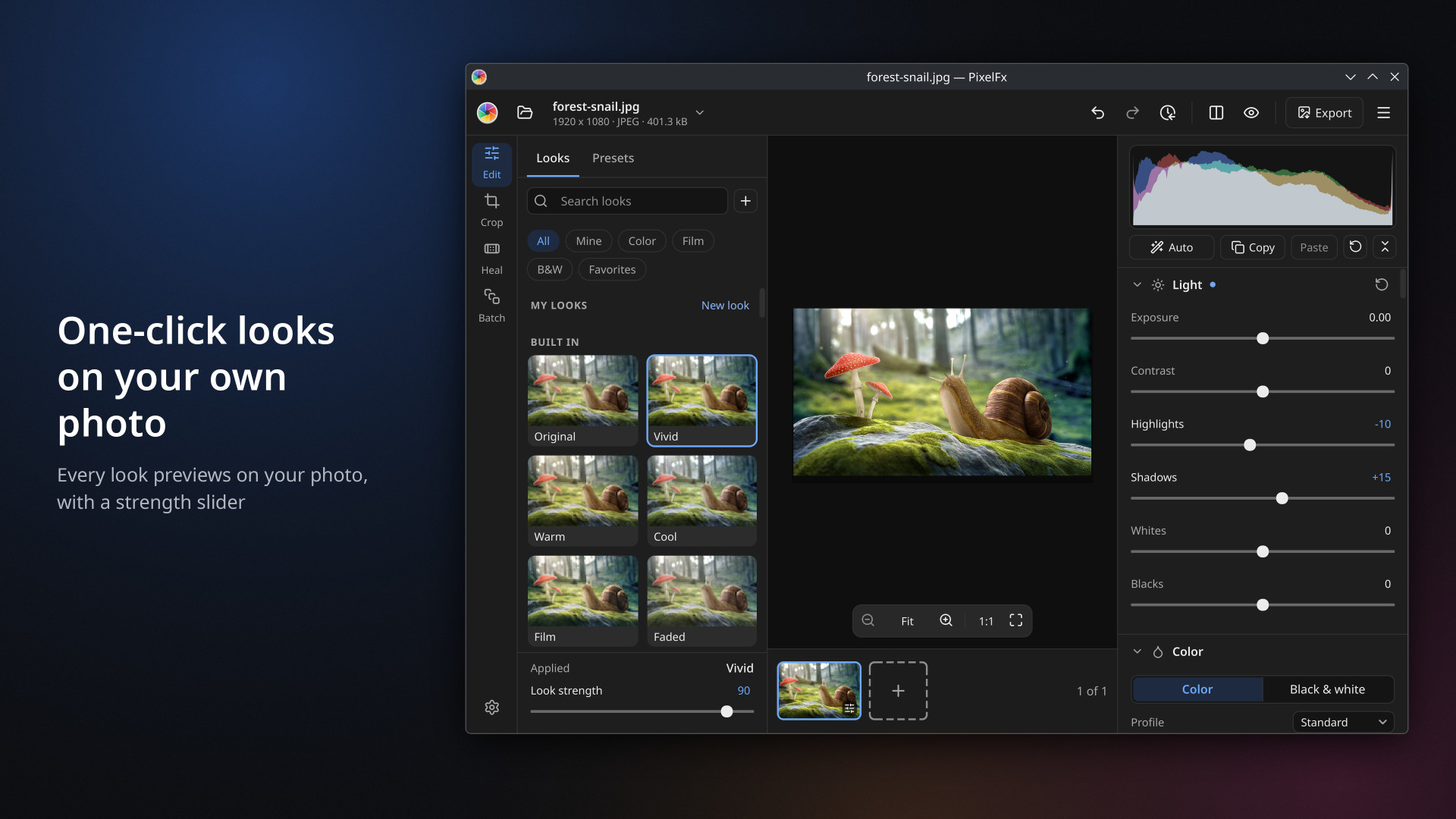
Looking for a photo editor for Linux or Windows that is quick to learn but still has the controls photographers expect? PixelFx is our photo editor, rebuilt from scratch for version 2. Pick a look and see it on your own photo, fine-tune light and colour, bring your Lightroom presets and LUTs, and batch edit, resize or convert a whole folder of photos in one go. Your originals are never changed.
PixelFx 2 is available now from the Snap Store on Linux and the Microsoft Store on Windows 10 and 11, and it is open source on GitHub.
PixelFx at a glance
- One-click photo filters (looks), each previewed on your own photo
- More than 400 built-in presets in 12 categories
- Import Lightroom and Camera Raw presets (.xmp), and .cube and HaldCLUT LUTs
- Camera RAW support, plus HEIC, AVIF and JPEG XL
- Batch edit, resize, convert, compress and rename whole folders of photos
- Non-destructive editing: your original files are never changed
- Runs on Linux and Windows
One-click photo filters, shown on your own photo
Looks are the filters in PixelFx. Each tile previews your own photo, not a sample image, so you see the result before you click. Vivid, Warm, Cool, Film, Faded, Golden hour, Teal and orange and Noir are built in, and every look has a strength slider that updates live while you drag.
You can build your own looks from steps, or bring the .cube and HaldCLUT LUTs you already use. Export a look to share it, or bake it into a .cube file to use in other apps.
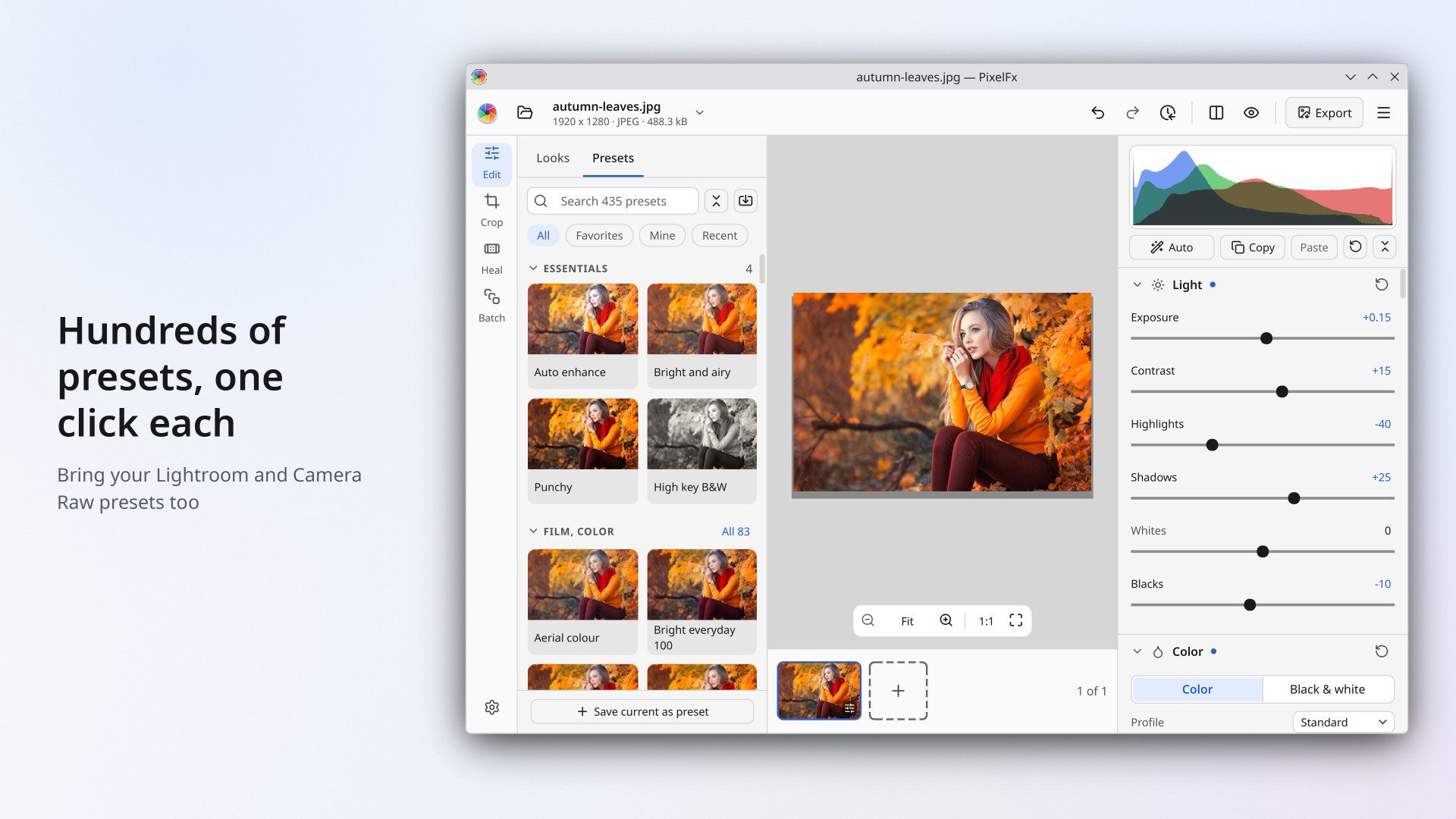
More than 400 presets, and your Lightroom presets too
PixelFx comes with more than 400 presets in 12 categories, including film, black and white, cinematic, portrait, landscape, seasons, places and vintage. Rest the pointer on a preset to preview it, set its amount anywhere from 0 to 200, and keep your favourites and recent presets close at hand.
Already have a collection of Lightroom or Camera Raw presets? Import the .xmp files directly. PixelFx lists anything in a preset it could not carry over, so there are no surprises. You can also save your own presets from a whole edit, or from only the parts you choose.
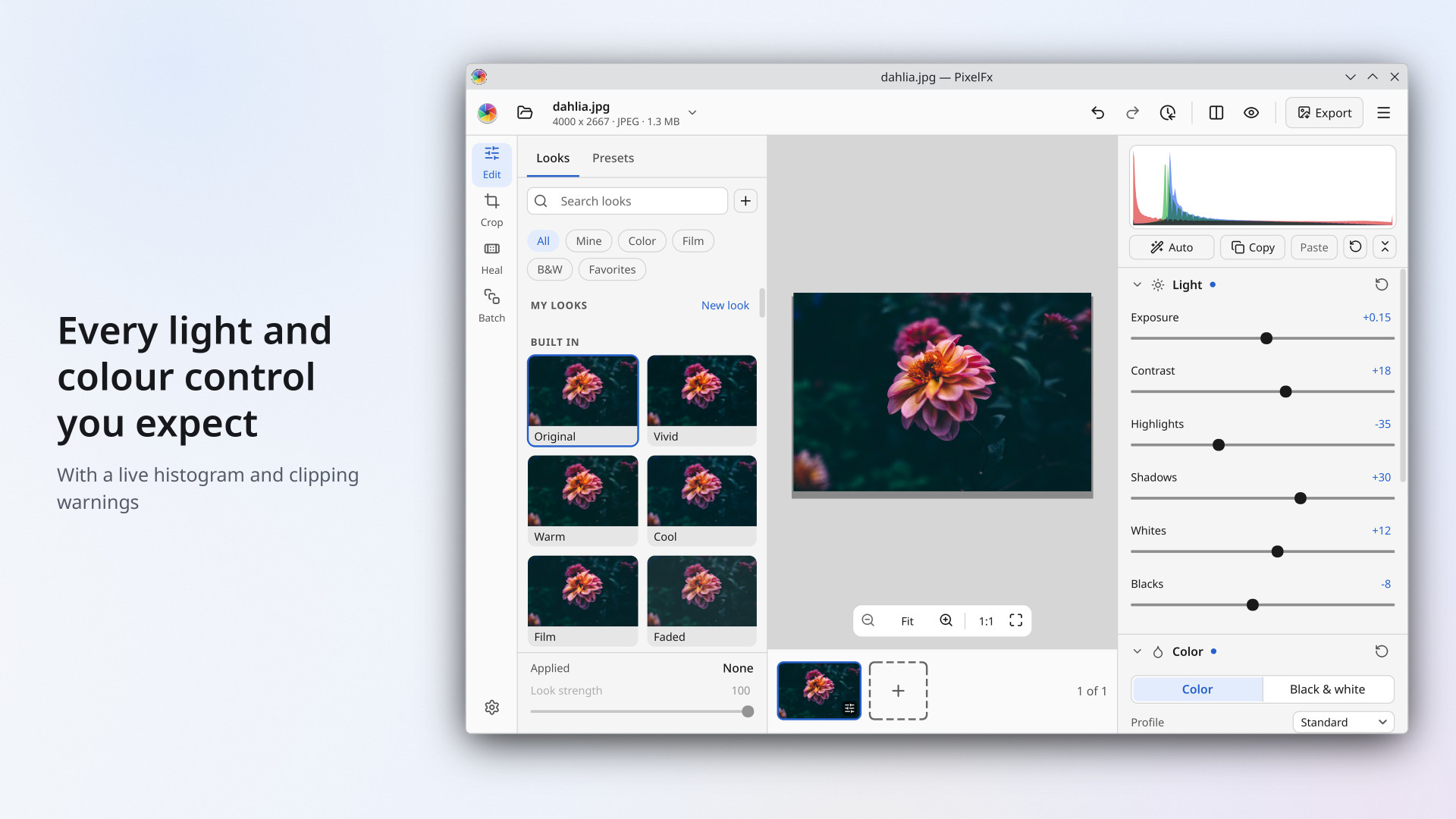
The controls photographers expect
Behind the looks and presets is a full photo editor:
- Light: exposure, contrast, highlights, shadows, whites and blacks, plus one-click Auto
- Colour: white balance (as shot, auto, picker, temperature and tint), vibrance and saturation
- Colour mixer (HSL) for eight colour bands, with a picker that adjusts the colour you click on the photo
- Curves and colour grading
- Detail: clarity, texture, sharpening, noise reduction and dehaze
- Effects: vignette, grain and fade
- Lens corrections from the Lensfun database
- A live histogram with clipping warnings
Crop, straighten, fix perspective and heal
Crop with common ratios, rotate and flip. Straighten a photo with a dial, or draw a line along the horizon. Fix leaning buildings, or square up a page, a document or a painting from its four corners. Remove blemishes, dust spots and small distractions with the heal spot or brush.
Compare before and after, and undo anything
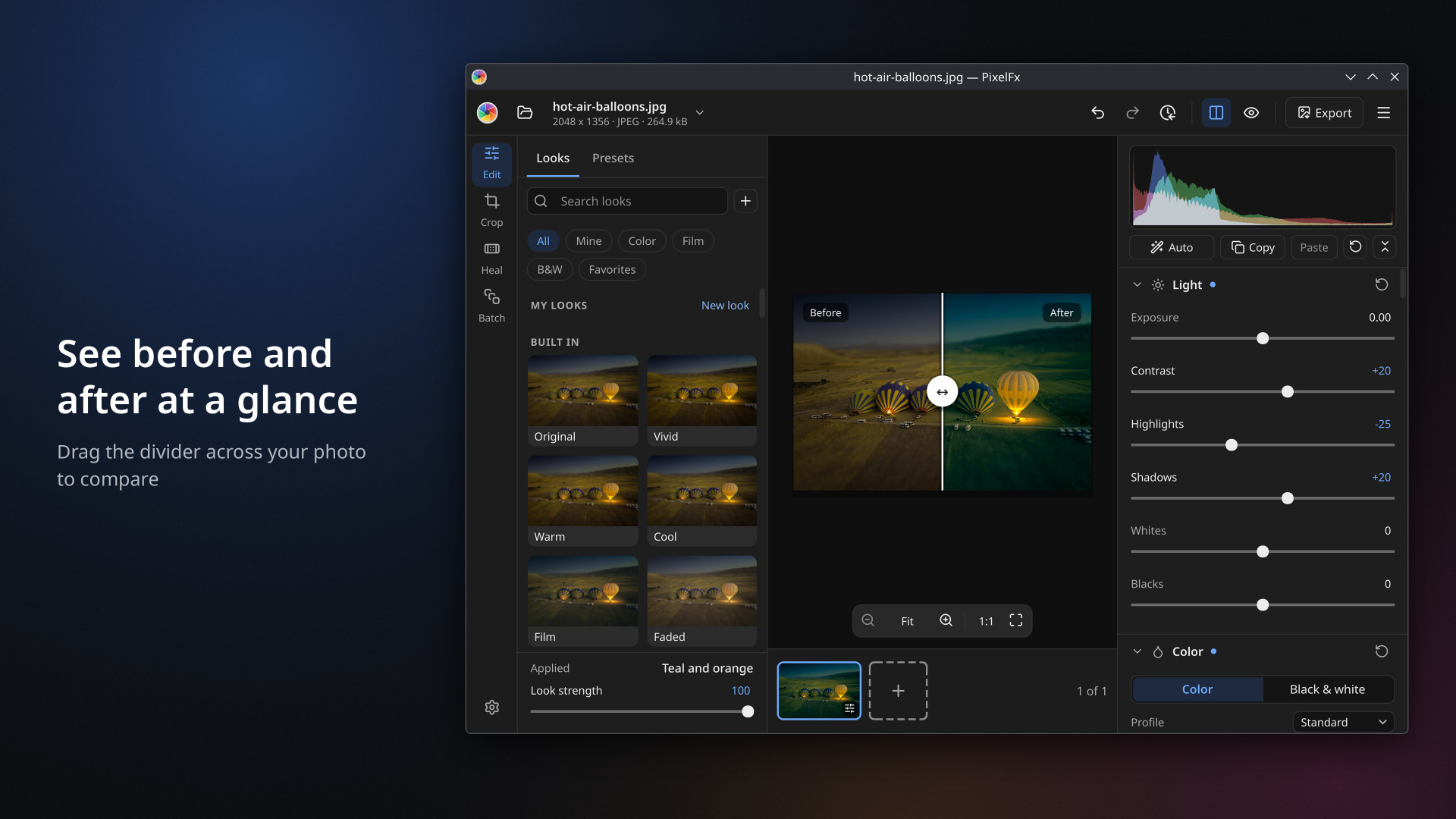
Drag a divider across the photo to compare before and after, view both side by side, or hold Space to see the original. Every photo keeps its own undo history and named snapshots, and you can copy the settings from one photo and paste them onto many.
Editing in PixelFx is non-destructive. Your original files are never changed, and your edits are remembered for each photo, even after you rename or move it.
Batch photo editor: whole folders at once
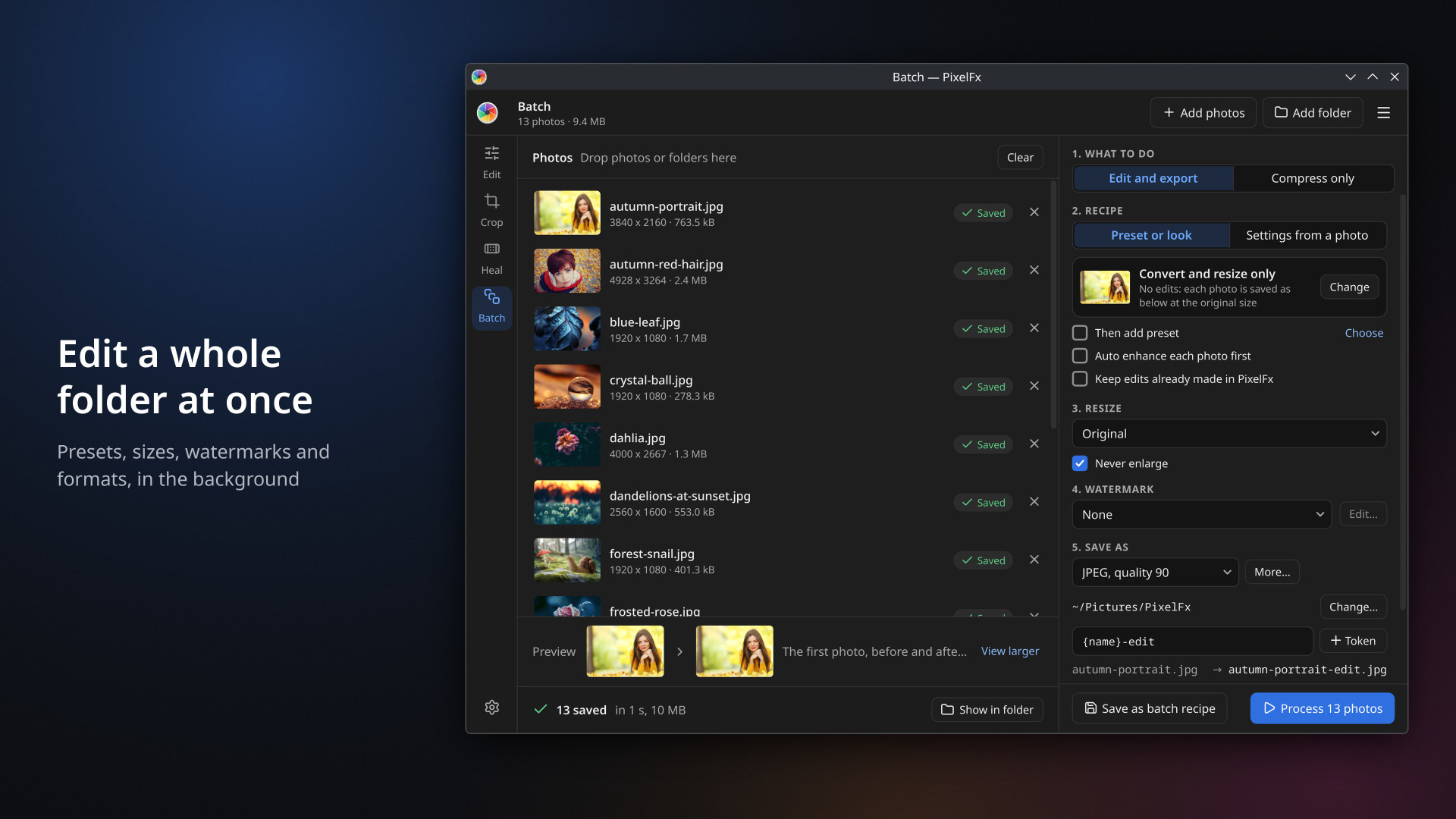
Batch is where PixelFx saves the most time. Pick a folder, stack presets and looks, add Auto, a size, a watermark and an output format, and let it run in the background while you keep editing.
- Convert and resize only, for jobs like HEIC to JPG or shrinking photos for email
- Compress photos and see how much space each one saved
- Rename with tokens such as {name}, {date} and {camera}, with a live preview
- Pause, stop and retry
- Save batch recipes and run them again, even from the command line
Export the way you need
Save as JPEG, PNG, TIFF, WebP, JPEG XL and more, with quality and 16-bit options. Size presets cover Instagram posts and stories, the web and print, with output sharpening. Choose sRGB, Display P3 or Adobe RGB, keep or strip metadata (location is removed by default), add a text or logo watermark, and see an estimated file size before you save.
Opens what you shoot
PixelFx opens Camera RAW files from Canon (CR2, CR3), Nikon (NEF), Sony (ARW), Fujifilm (RAF), Olympus (ORF), Panasonic (RW2), Adobe DNG and many more, along with HEIC, AVIF, JPEG XL, JPEG, PNG, TIFF and WebP. Embedded colour profiles are honoured. Drag in photos and folders, paste an image from the clipboard, or on Windows open photos straight from File Explorer with Open with.
Free to start
Edit and save one photo at a time for free. Batch editing of many photos at once, and saving photos that use RAW files, imported presets, LUTs or watermarks, is a paid upgrade, with a free try first.
How to install PixelFx
On Linux
PixelFx is on the Snap Store, so it runs on Ubuntu, Fedora, Debian, Linux Mint, Arch and other distributions with snap support. Search for PixelFx in Ubuntu’s App Center, or install it from a terminal:
sudo snap install pixelfxOn Windows 10 and 11
Get PixelFx from the Microsoft Store. It installs and updates like any Store app, and adds PixelFx to Open with for photos and Camera RAW files.
Who is PixelFx for?
PixelFx is for anyone who wants great-looking photos without a steep learning curve: hobby photographers, people sharing to social media, and anyone with a big folder of photos to resize or convert. If you are looking for a Lightroom alternative on Linux, PixelFx gives you familiar controls and imports your .xmp presets, in a light app that opens fast.
Frequently asked questions
Is PixelFx free?
Edit and save one photo at a time for free. Batch editing of many photos at once, and saving photos that use RAW files, imported presets, LUTs or watermarks, is a paid upgrade, with a free try first.
Does PixelFx work on Windows?
Yes. PixelFx runs on Windows 10 (version 1809 or later) and Windows 11, and you can get it from the Microsoft Store.
Can I use my Lightroom presets in PixelFx?
Yes. PixelFx imports Lightroom and Camera Raw presets saved as .xmp files, and tells you about any setting it could not carry over.
Does PixelFx support RAW photos?
Yes. PixelFx opens Camera RAW files from most cameras, including CR2, CR3, NEF, ARW, RAF, ORF, RW2 and DNG.
Does PixelFx change my original photos?
No. Editing is non-destructive: PixelFx saves a new file when you export, and your originals stay as they were.
Is PixelFx open source?
Yes. PixelFx is open source under the GPL-3.0-or-later and developed on GitHub, where you can report bugs and suggest features.
Give PixelFx a try and tell us what you think. More details, screenshots and download links are on the PixelFx page.